
Build, or Plan first
There are two ways to work with Anela AI. Most messages use the first. The second is for changes you want to read about before they happen.
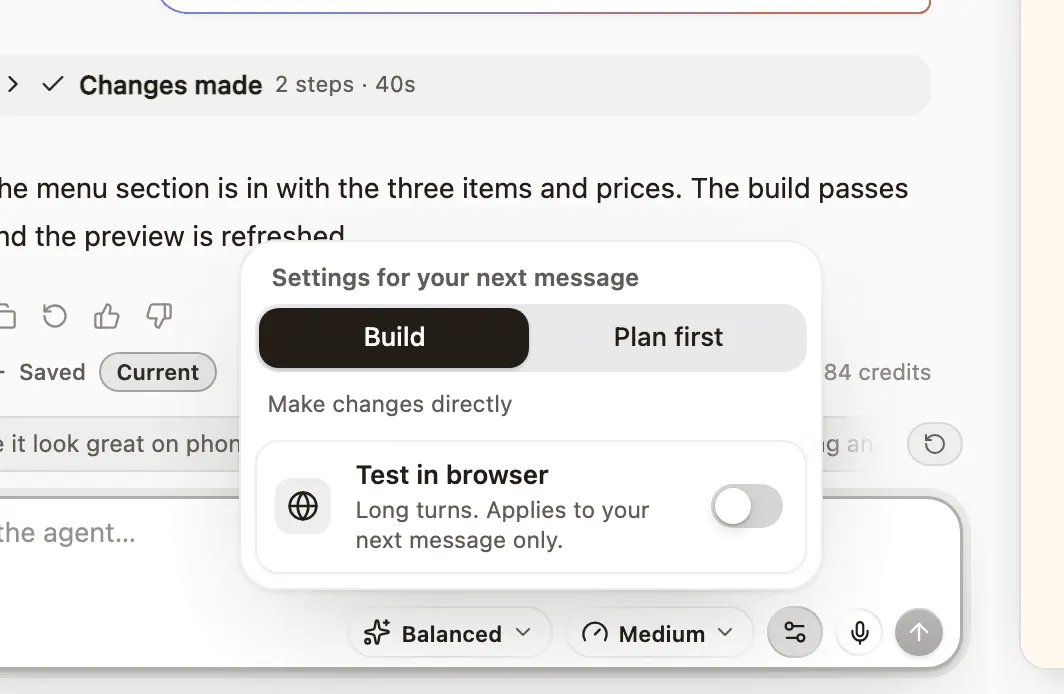
The default. You ask, Anela AI changes the project, the preview updates. Good for almost everything: wording, colours, a new button, a bug.
Plan first
Section titled “Plan first”Press the settings button under the chat box, the sliders icon beside the microphone, and choose Plan first. Now Anela AI answers your next message with a plan: what it understood, what it will change, in what order. Nothing in your project changes yet.
The plan arrives as a card in the chat with four choices:
- Approve and build. Anela AI does what the plan says.
- Request changes. Tell it what to change in the plan. It writes a new one.
- Comment. Ask a question or add a detail without deciding yet.
- Abandon. Drop the plan and go back to talking.
After you approve
Section titled “After you approve”Approving a plan switches you back to Build, so your next message is built straight away. That is deliberate: the plan was for this change, and you rarely want to plan the follow-up “make the button a bit bigger”. Turn Plan first on again whenever you want another plan.
When to use which
Section titled “When to use which”- Build for small, clear changes. Most messages.
- Plan first for a new section or page, a redesign, a change to how your data is stored, or anything where a wrong guess would be expensive to undo.
Planning spends credits, because the model thinks about your project, but it is usually cheaper than building the wrong thing.
The same panel has one more switch
Section titled “The same panel has one more switch”Test in browser lets Anela AI open your site in a real browser, so it can click through what it built. It stays on for that project until you turn it off, and the settings icon turns green while it is on. Turns take longer with it on.
Verified against the product on 2026-09-15.