
Find your way around
There are two screens: the dashboard, where your projects live, and the editor, where you build one of them.
The dashboard
Section titled “The dashboard”- The box at the top starts a new project from a sentence. The plus button attaches files, and the small menu beside the send button chooses Build or Plan first for the new project.
- Your projects are cards with a picture of the site. Click one to open it. The search box finds a project by name.
- The menu on a card (the three dots) can duplicate the project or delete it. A duplicate is an independent copy, with its own database and its own address later.
- Folders group projects so the list stays tidy. They do not change who can see anything.
- Import a project brings in a site from Lovable, Replit, Bolt, a zip, Figma screens or a website address. Bring a project you already have.
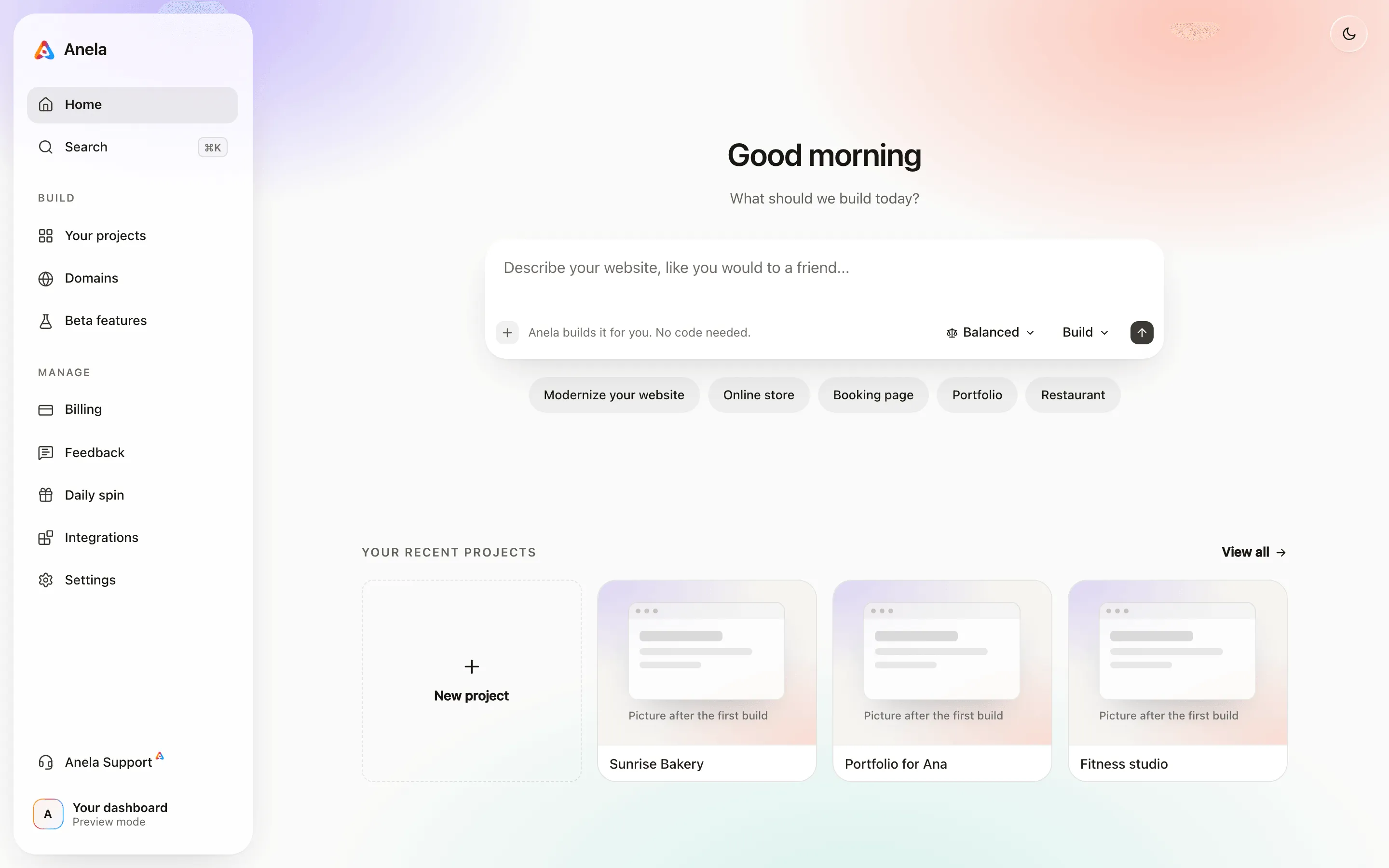
The left rail has Home, Search, Your projects, Domains, Beta features, Billing, Feedback, Daily spin, Integrations, Settings, and Anela Support at the bottom.
Three more ways to start a project:
- New project, the first tile under Your recent projects, opens a fresh project with an empty chat.
- Modernize your website, the first pill under the box, takes the address of a site you already have and rebuilds it with a modern design. The other pills put a starter idea in the box. Bring a project you already have.
- Ask anything, in Beta features, takes any question, from “how does a mortgage work” to “what is a sourdough starter”, and builds a small website that explains the answer, with diagrams, something to try and a quiz. It takes a few minutes and spends credits like any build.
- Your business on Google, in Beta features, takes your Google Maps link, or your business name and city, reads what is public on your listing (hours, address, phone, photos) and builds your site from it. If the listing shows your website, it modernizes that site. It takes a few minutes and spends credits like any build.
- Your app, in Beta features, turns a published site into an app your customers install on their Android phones, or builds a new app. Turn your site into a phone app.
The editor
Section titled “The editor”Open a project and you get the editor. The chat is on the left. The preview of your running site is on the right. Between them sits a handle you can drag, and the chat can be hidden to give the preview the whole width.
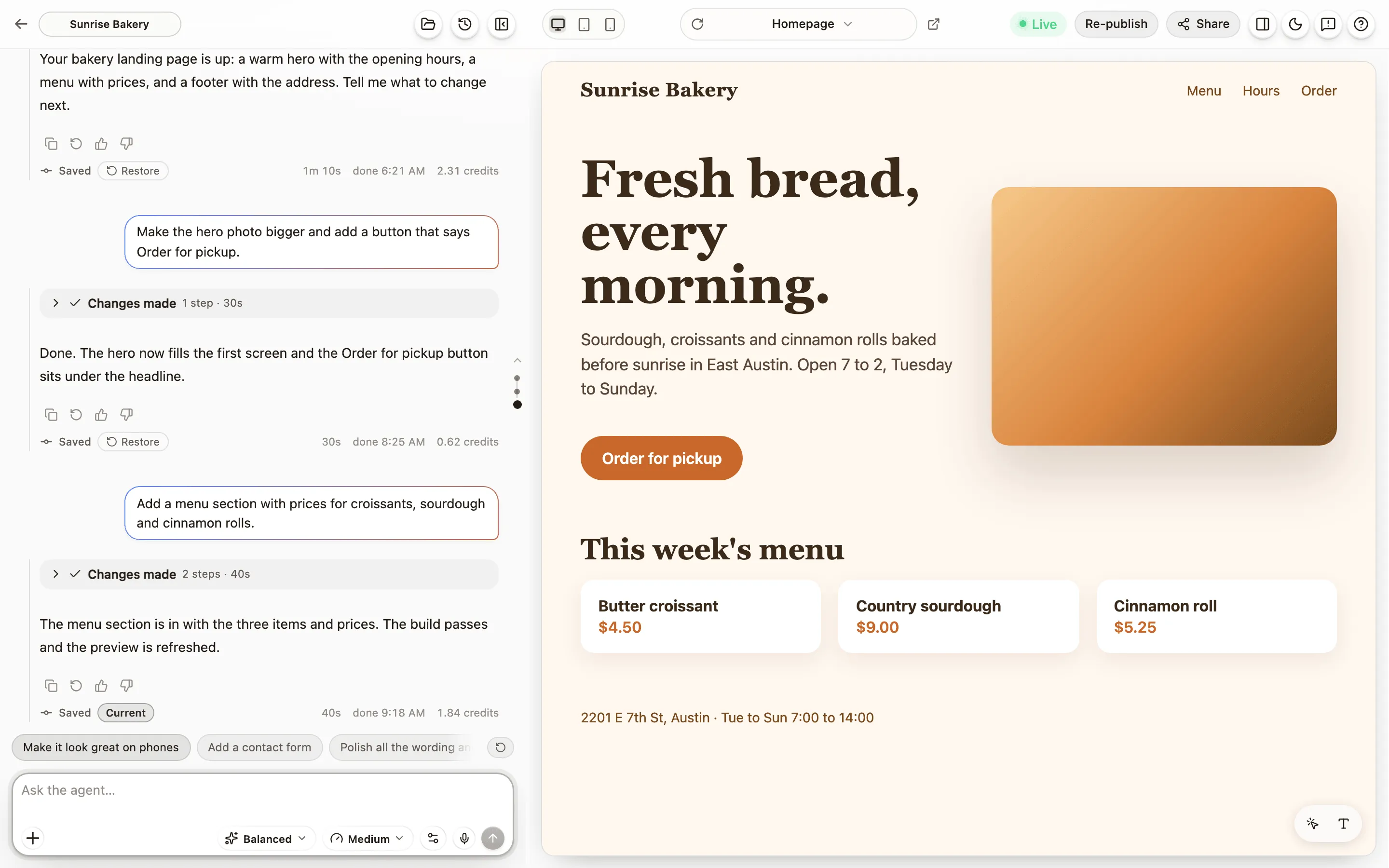
Across the top, left to right:
- Your project’s tab. Double-click it to rename the project. The arrow before it goes back to the dashboard.
- The saved badge. Says whether your latest change is saved.
- The project switcher. The folder icon lists your other projects, to jump between them.
- Checkpoints (the clock button). Every build saves one. Open this to go back. Checkpoints and restore.
- Hide chat. Gives the preview the whole width. Press it again to bring the chat back.
- Device sizes. Phone, tablet and desktop widths for the preview.
- The page address. Which page of your site the preview is showing, with a reload button before it and an open-in-new-tab button after it. Type a path to jump.
- Theme, Report and ?. Light or dark, tell us about a problem, get help. Get help.
- Files. Opens the five tabs below.
- Share and Live. Share hands out the public link. The Live pill appears once the site is online.
- Publish. Puts the site online. After the first publish it says Re-publish. Publish your site.
Under the chat box sit the mode pill, the effort pill and the settings button, which holds Build or Plan first. How building with AI works explains them.
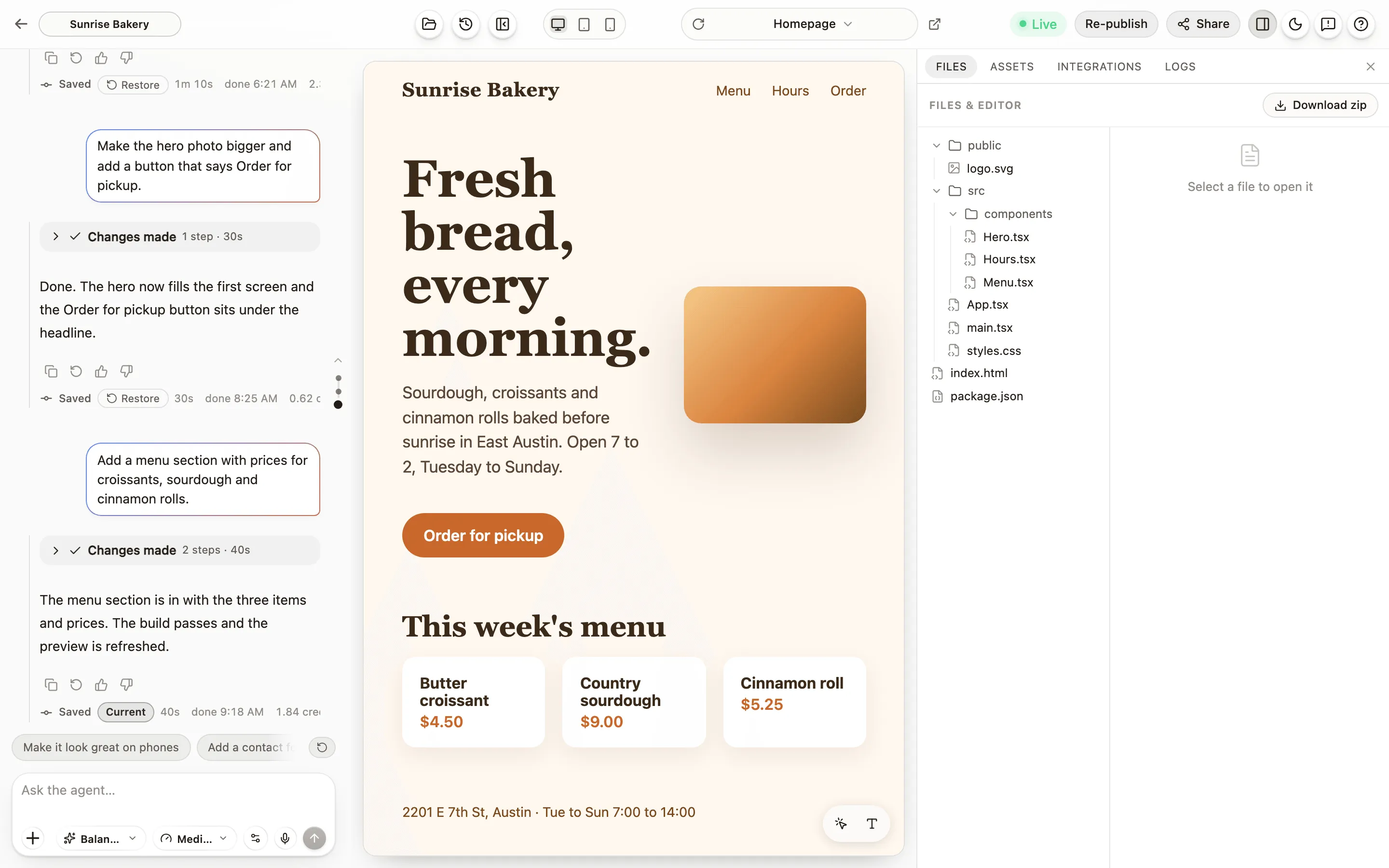
The five tabs behind Files
Section titled “The five tabs behind Files”- Files. Every file in your project, with a code editor. You never have to open it. The Download zip button lives here. Download your code.
- Assets. Where your site keeps things: a database, sign-in for your visitors, and the secrets vault for API keys. Setting these up from here does not spend credits. A database, sign-in and secrets.
- Integrations. GitHub, email, and payments with Stripe. Email connects with one click, no key to paste. Sync with GitHub. Send email from your site. Take payments on your site.
- Analytics. Who visits your published site: how many, which pages, for how long and where they came from, counted without cookies. See who visits your site.
- Logs. What your site prints while it runs. Read-only; useful when Anela AI says “check the logs”.
On a phone
Section titled “On a phone”Anela works in a phone’s browser too. The dashboard gets a tab bar along the bottom: Home, Projects, Daily spin, Billing and More, where the rest of the rail lives. The editor shows one pane at a time, the chat, the preview or the files, with tabs to switch between them, and Publish stays at the top right. For the five tabs, tap the project’s name and choose Files and integrations.
Settings
Section titled “Settings”Settings live on the dashboard, not in the editor: your name, your email address, the Password row to change it, light or dark appearance, language (English or Spanish), browser notifications, your plan and credits with a way to the Billing page, Log out, and Delete account at the bottom. Your account.
Two shortcuts
Section titled “Two shortcuts”- Cmd+K (Ctrl+K on Windows) opens search from anywhere.
- Cmd+/ (Ctrl+/) opens help. The
?button does the same.
Verified against the product on 2026-09-24.