
Publish your site
Publishing makes a copy of your site and puts it online at a public address. Your working project stays as it is; you keep building, and publish again whenever you want visitors to see the new version.
Publish for the first time
Section titled “Publish for the first time”- Press Publish in the editor header. A sheet opens with three tabs: Free address, Connect your domain and Buy a domain.
- On Free address, Anela suggests an address based on your project’s name; edit the part before
.anela.siteif you like. It can be 3 to 30 lowercase letters, numbers or hyphens. Some names are reserved or not allowed. - Press the publish button at the bottom. Within about a minute the site is live, the sheet shows the link with buttons to copy it and open it, and a Live pill appears in the header.
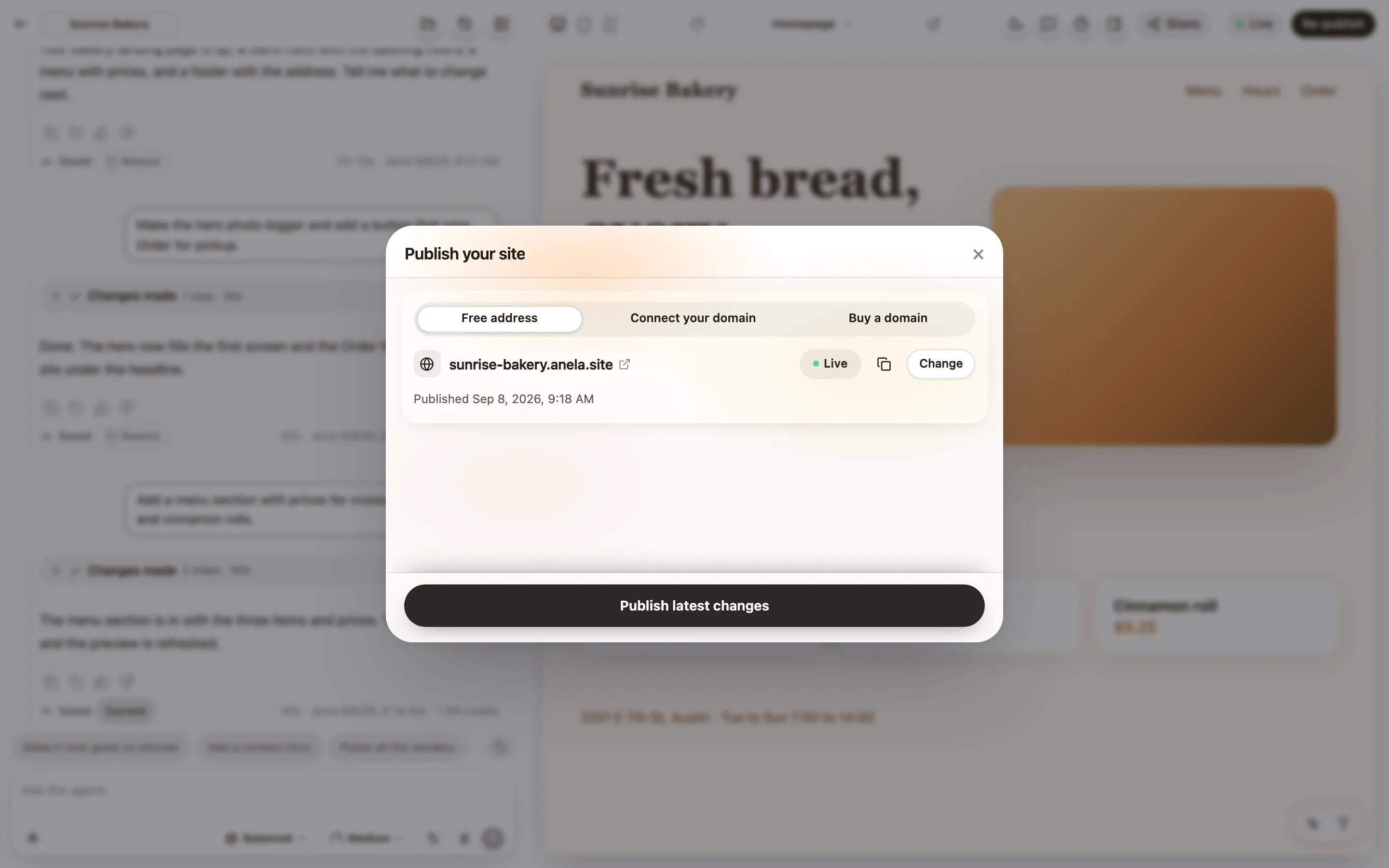
The address is yours from that moment. Renaming the project later does not change it.
Republish
Section titled “Republish”After more changes, the header button says Re-publish and the sheet’s button says Publish latest changes. Press it and the new version replaces the live one. Visitors never see a half-updated site: the swap happens only when the new version is completely ready. While it works, the button says “Publishing”. If nothing changed since the last publish, the button says Up to date instead, so you know there is nothing to do.
The security check
Section titled “The security check”Before every publish, Anela checks the site for common problems: a key or password left in the published files, data that anyone on the internet could read, a part of your site that hands out data without asking who is asking. If it finds something serious it refuses to publish and tells you why. Ask Anela AI to fix what the message names, then publish again. If a part of your site is meant to be public, the sheet asks you to confirm that, once. Publish was blocked or failed explains every message.
Your site’s data
Section titled “Your site’s data”If your site keeps data (entries, orders, sign-ups), your live site has its own copy.
- The first publish copies your preview’s data, accounts included, so your own login works on the live site. The publish screen says what it copies.
- After that, publishing is the save button for your data too. The publish screen lists what changed in your preview’s data since your last publish: new, changed and deleted entries, and new sign-in accounts (they can sign in on the live site with the same password). Everything starts ticked; untick what should stay only in the preview.
- It adds, it never wipes. What visitors did on your live site stays: an entry they also changed keeps their version, and one the live site still uses elsewhere is not deleted. Deleting anything on the live site asks you to confirm first.
- To change data that only your live site has, ask Anela AI (“delete the spam sign-ups on my live site”, “fix that customer’s order”). It prepares the change, tells you exactly what it will do, and the change is applied when you publish.
- Changed your mind? Ask Anela AI to drop the change before you publish.
The badge
Section titled “The badge”A site published on the Free plan carries a small “Made with Anela” badge in a corner. It is added when the site is served, so it is not in your files. Visitors can hide it for 20 seconds with its X; it comes back after that, or when the page reloads. On any paid plan, from Lite up, the site is served without it, and an upgrade takes it off the live site without republishing. Plans and credits.
A paid plan can show it again: turn on Show the “Made with Anela” badge on my sites in Settings or on Referrals. While Referrals runs, a visitor who signs up from the badge counts as your invite. Referrals: invite friends.
Share the link
Section titled “Share the link”Share in the header shows the public link, with copy and open buttons and buttons to share it on X, LinkedIn, WhatsApp or Facebook. Before the first publish it says there is no live site yet.
Go back to an earlier version
Section titled “Go back to an earlier version”To put an earlier version of your site back online, restore that version of your project, then publish again. Open Checkpoints (the clock button) in the header, restore the one you want, check it in the preview, and press Publish. Your visitors keep seeing the current site until you publish. Checkpoints and restore.
Your own domain
Section titled “Your own domain”When you are ready for your own name on the site, the same sheet has two tabs for it. Connect your domain is for a domain you already own: Anela shows the records to add where you manage it. Connect a domain you own walks through it. Buy a domain is for a new one: type a name, pick one from the results, see its yearly price, fill in the registrant details the registry requires, and press Pay and connect. Nothing is charged until you pay, the domain renews yearly, and Anela sets it up for your site, records and certificate included. Both tabs are for paid plans; on the Free plan they offer the upgrade.
Taking a site offline, or changing its address
Section titled “Taking a site offline, or changing its address”Open Domains on the dashboard. You can take an address offline or disconnect it. The old address is held for 30 days so nobody else can take it, and visitors see a short notice that the site was unpublished. For those 30 days it is still yours: open the On hold tab in Domains and put it on any of your projects, or choose it in the publish window under Connect your domain.
What gets published, and what does not
Section titled “What gets published, and what does not”Only the built site: the pages your visitors see. Your chat, your versions, your secrets and your project’s settings file never leave your project.
Verified against the product on 2026-09-24.