
The preview
The preview on the right is your site, running. Everything Anela AI changes shows up here.
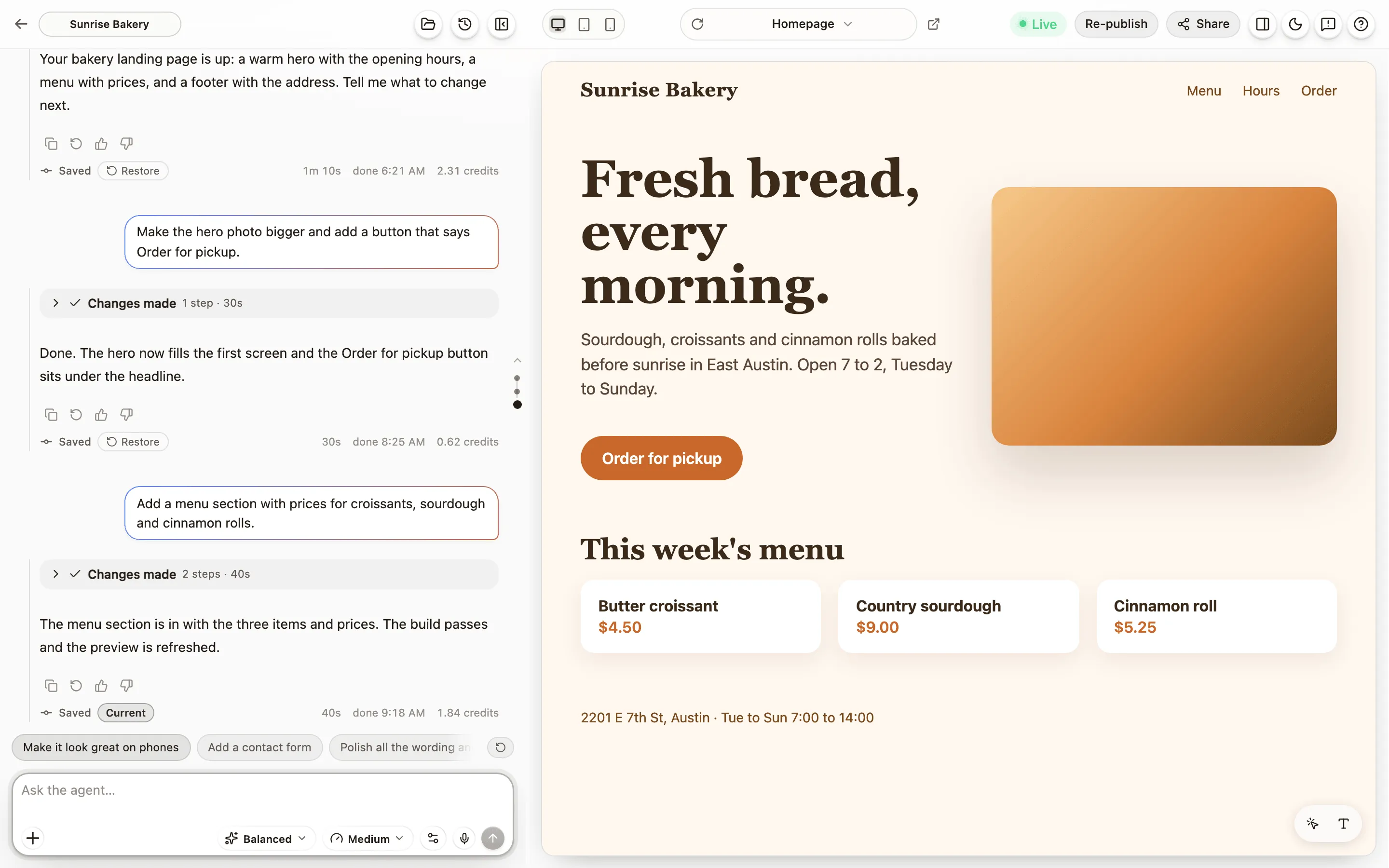
Stable preview and Live preview
Section titled “Stable preview and Live preview”The Preview mode button, between Reload and Open at the top of the editor, switches between two ways of showing your site. This browser remembers your choice for each project.
- Stable preview is the default. It updates only when Anela AI finishes, never while it is working, so you can keep using your site with no interruptions or reloads. It is always on and never goes to sleep, so it loads fast when you open your project.
- Live preview keeps updating to show the changes Anela AI is making right now. It can reload or show errors while Anela AI works, because the files are changing as you watch. It sleeps when you stop using it, and one click wakes it up.
The device buttons in the header switch the preview between desktop, tablet and phone widths. Most visitors are on a phone, so check that one before you publish.
Pages and reload
Section titled “Pages and reload”The address pill shows which page of your site you are looking at. Click it to pick another page or type a path. The reload button reloads just the preview.
Open in a new tab
Section titled “Open in a new tab”The open-in-tab button gives the preview its own browser tab, full size, with its own address. Handy on a second screen.
Select an element
Section titled “Select an element”Press Select, click anything on the page, then tell Anela AI what to change about it: “make this heading smaller”, “move this button to the right”. Anela AI knows exactly which element you meant.
Edit wording without credits
Section titled “Edit wording without credits”Press the Text tool, click any text on the page and type the new words. The change is saved straight into your project and spends no credits. If a piece of text appears in several places, the tool tells you and asks Anela AI to handle it instead.
Make it bigger
Section titled “Make it bigger”Press Hide chat in the header and the preview takes the whole width. The site itself may go full screen when it asks to, which browser games do.
What the preview shows when things are not running
Section titled “What the preview shows when things are not running”- Building. While a build runs, a cover shows the progress. The page reloads on its own when the build finishes.
- Asleep. A project goes to sleep when you leave. The preview keeps showing the last built copy, so a shared link keeps working. Send a message and the project wakes.
- “This site has not been built yet.” Nothing has been built so far. Ask for your site in the chat.
- “This preview isn’t loading.” The site is running but answering with an error instead of a page. Your code and your changes are safe; tell Anela AI what you see.
- A red bar saying your site hit an error. Press Fix it with Anela AI to hand the error over.
- “This version has an error.” The last build of the site failed, so the page shows the error instead of an older version. Ask Anela AI to fix it and the page comes back.
Verified against the product on 2026-09-24.