
Checkpoints and restore
Experiments are safe here. Every build saves a version, and any of them is one click away.
What gets saved
Section titled “What gets saved”Every time Anela AI finishes a turn, a version of your whole project is saved. Versions are kept for as long as the project exists.
Open Checkpoints
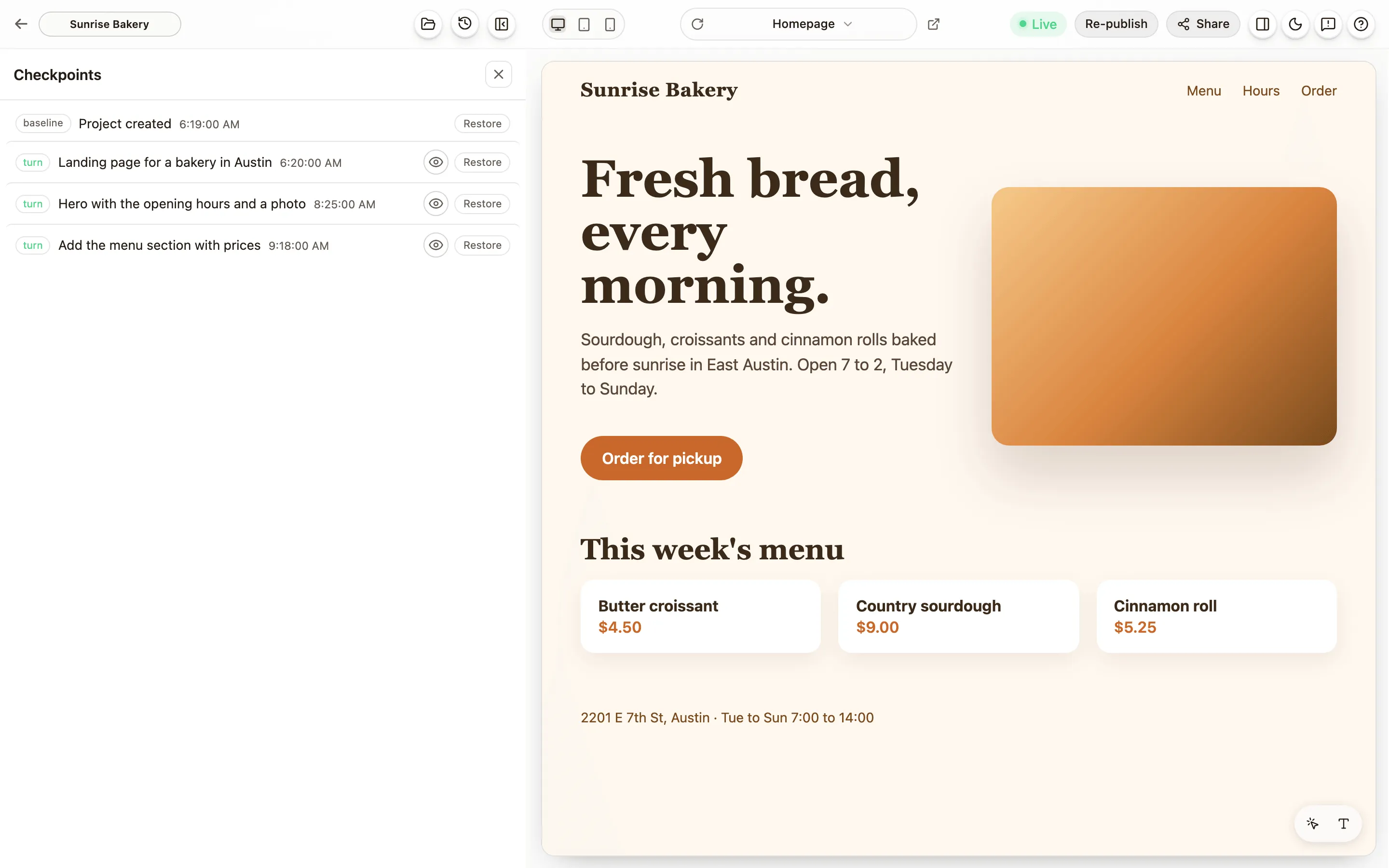
Section titled “Open Checkpoints”Press Checkpoints, the clock button in the editor header. You see the list, newest first, each with the time and the request that produced it. Where a built copy exists, the eye button shows a preview of that version before you decide.
Restore
Section titled “Restore”Pick a version and press Restore. Your files go back to how they were at that moment. The chat shows a card saying what was restored. The same Restore button also sits under every finished change in the chat.
The messages after that point do not disappear. They stay in the chat, marked as set aside, so you can still read what happened.
Bring back
Section titled “Bring back”Changed your mind? The restore card has a Bring back button that returns the newer version, with the work you had set aside. You can go back and forth as often as you like.
What a restore does not touch
Section titled “What a restore does not touch”- Your database. A restore puts the code back, not the data. If Anela AI changed how your data is stored and you restore, the data stays as it is now. For changes that touch data, ask for a plan first and read it. Deleted data comes back from the Data tab (below).
- Your chat. Nothing is deleted. The set-aside turns are still there.
- Anela AI’s memory. It still remembers the newer work, which is useful when you tell it “do that again, but without the red”.
Bring back deleted data
Section titled “Bring back deleted data”The same panel has a Data tab. Deleted something by mistake, or Anela AI did? Pick a moment from before it happened: a publish, an earlier recovery, one of Anela AI’s changes, or any date and time in the last 7 days. You see what was deleted since then, table by table, and the sign-in accounts by email.
Tick what should come back and press Bring back. It is a merge: only what is missing comes back, with the same ids it had, and everything there now stays as it is, including orders or sign-ups that arrived since. Accounts are never ticked for you, because a person may have deleted their own; an account whose email someone signed up with again stays out. The chat says what came back.
Your live site and your preview keep separate data. The Data tab starts on your live site; if something was deleted in your preview and not published yet, choose Preview. What comes back on your live site comes back in your preview too, so you and Anela AI see the same thing. What comes back in your preview leaves your live site as it is: your next publish offers only what changed since your last publish, so anything that came back exactly as it was then, such as an entry you left out of a publish, is not offered again. Either way, the preview reloads by itself to show it.
You can also ask Anela AI. On the preview it brings the data back itself. On a live site it only prepares it: the Data tab shows it with Bring back now, and nothing changes until you press it.
Download this moment’s data gives you that moment’s data in one zip, like the download in Assets.
Your published site
Section titled “Your published site”A restore changes your project, not your live site. Your visitors keep seeing what you published last. To put the restored version online, press Publish. Publish your site.
While the project is asleep
Section titled “While the project is asleep”Checkpoints show even while the project is asleep, so there is no need to send a message first. The list itself is never lost.
Verified against the product on 2026-09-24.